Timetable
The timetable window shows the list of trains and train variants in the scenario. The list can be restricted using the filters on the left side and on top or sorted using the column sort mechanism in the top row. The filter for train code, number and group code work with "*" for substitutions. More on the filters below.
By double clicking on a train the Train editor will open in a new browser window. If the window does not open, allow pop-ups in your browser settings.
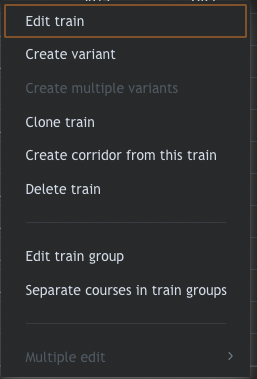
Using the checkboxes in the first column, a manual selection of trains can be created. By holding Shift and clicking directly in the checkboxes multiple, distinct rows can be selected. By holding Shift and clicking on a row outside the checkbox all rows in between will be selected. It is also possible to select/deselect all (filtered) rows at once. After selecting trains it is possible to modify them by right-clicking on one of the selected rows. A menu opens. For a more advanced selection of trains the Train searches page provides detailed explanation.
In addition to the Trains timetable, there is the Groups timetable, which contains all train groups with more than one course.
Create trains
In the timetable window it is possible to create new trains. There are various modalities to create new trains.
Create new train
The first option is to create a new train without content - either with the recommended Full path or the Automatic path. Full path definition: To define the path and running times from scratch, click New Train in the right bottom corner. This opens a dialog window to specify general characteristics of the new train and train group. With Define train path it opens the empty train editor, where stations, times and stopping pattern can be defined. By creating a new train, a new train group will be created as well. Automatic path definition: Specify general characteristics of the new train and train group. With Automatic train path it opens the window to define the path, where only Origin and Destination are mandatory. All intermediate stations will be interpolated. This method only works if the path is unambiguous in the macroscopic model (no parallel lines or advanced edge track selection required)
Clone train
The second option is to clone an existing train. By cloning a train, a new train group will be created as well. It is possible to clone the train in the opposite direction, inverting its path. It is necessary to define train code and other general characteristics of the new train and train group. There are a couple of additional options available to:
- Remove intermediate stops
- Remove notes
- Remove a custom calendar
- Reset all margins
- Create train in opposite direction
Create variants
The next option does not create a new train group, but it creates a variant of an existing train. The variant replaces the original train on the days the variant is running. All elements of the variant can be changed, modifying the original train. A variant has its own unique train code and a variant number. The creation of a hirarchy of variants is possible, with the newest variant overwriting older ones on its active days.
Create multiple variants
The option to create multiple variants creates variants for a selection of trains. It becomes active when more than one train is selected. The variants created have the same (custom) operating calendar.
Generate train group
In the groups timetable -> edit train group it is possible to create new train inside an existing train group. The base train of the train group becomes a template for the creation of addtional "courses" in a regular interval. The new trains have their own unique train code, but share the train group code and characteristics, such as stopping pattern, running times and path. Modifying elements of one train will modify all trains of the train group.
In the creation process train codes and train numbers can be generated automatically. Make sure that the train codes in the creation process are not already present in the timetable, otherwise the creation will not be successful. train numbers can already be present and, if in doubt, can be checked with the conflict checker (train number uniqueness) afterwards.
Seperate courses
In situations where running times or stopping pattern for one or more trains of a train group need to be different from the others, it is possible to seperate them from the group, creating a train group in their own right. The elements of the train can be changed without impacting other trains of the train group. However, the ability to modify trains together is lost, too.
Merge trains
The merge trains function only works in very limited circumstances. It is the inverted process of Seperate courses in train groups. The trains merged need to be compatible, so they need to have the same path and running times. Exceptions are allowed within the limits of train groups (OCP track, restricted paths, trainsets). One of the trains selected is defined as the master train, becoming the template of the new train group.
Delete train
The delete train function deletes the train from the timetable. If the train is the only train in the train group, the train group will be eliminated as well. If there are other trains in the train group, other courses or variants, the train group can be deleted by activating the Delete train group option.
Train groups view
It is possible to work with train groups in trenoLive. To visualise the train groups in a single view, use the train groups view. It is similar to the standard timetable view but might reduce the number of rows significantly. Opening a train group by double-clicking will bring the user to the train editor window with the train group editing active.
Attention: The train group editing will reset eventual overrides present for the individual trains. In addition, the variants present in the timetable will not be considered in the train group view. Working with train groups is only advised in scenarios without any train variants. It is not possible to have train variants for trains in a train groups.
Multiple edit
The multiple edit function allows to modify more than one train. Select the trains in the timetable and chose the appropriate multiple edit function. It is possible to:
- modify general characteristics (Multiple edit)
- cancel trains (Multiple train cancellation)
- edit rtc performance parameters (Multiple edit train performances)
- calculate the running times (Multiple edit RTC)
- edit line tracks
- edit station track or platform
- merge trains into one train groups
- edit running or stop times
Further explanations...
Multiple train cancellation
The multiple train cancellation creates multiple variants for the trains selected with one or more days set to "not running". The variants will overwrite the original train, therefore cancelling it for the selected dates, but conserve the path and timings of the original train.
Multiple edit RTC
This function calculates running times (MRT) for all trains selected. Depending on the number of trains selected it can take a while to be executed. After the calculation it is possible to check the results and apply new MRTs to all or some trains in the selection overwriting the preexisting MRT values. The multiple RTC is also relevant for the visualisation of blocking times.
Edit running or stopping times
This function offers three different modifications.
- Stop time or stop margin for OCP. Select one OCP and modify stop times or stop margins for all trains selected. Empty fields have no effect and preexisting values will not be changed.
- Running time or running time margins for edge. Select one Edge track and modify running times or running time margins (in seconds) for all trains selected. Empty fields have no effect and preexisting values will not be changed.
- Bulk edit percentage margin. Select a number of edges or all edges and modify running time margins (in percentage) for all trains selected.
Filters in the timetable
Two kinds of filters are available in the Timetable window. On the left side there are the more refined filters such as corridors, dates, comments or even train searches. Instead in the table header filters for each table column can be found. The filters either work with free text or with a dropdown menu presenting all possible options. If inserting a user-defined text, the * is a placeholder symbol, without it the filters only search for exact matches. If no match is found, the list remains empty.
The Origin time and Destination time filters act as lower limit (left cell) and upper limit (right cell). Only full hours are allowed.
Invalid trains
Trains and train groups can be invalidated. Reasons for invalidation could be: Elements have been deleted, the train is placed on an invalid OCP track, the trainset changes in an entry type "pass", etc.
If a train group is invalid, it will invalidate also all the group's courses. An invalid train or train group can be restored by removing the conditions that lead to the invalidation. Invalid trains can also be deleted.
If a train is neither valid nor invalid, it is "Broken". Broken trains can not be restored by the user. Please contact TRENOlab immediately if you have trains with the status "Broken" in one of your scenarios.